Using Time-line Live
Learn how to use the decks, waveforms, Key Points, and Automations on the Time-line Live home screen.
- Decks
- Key Points
- Automations
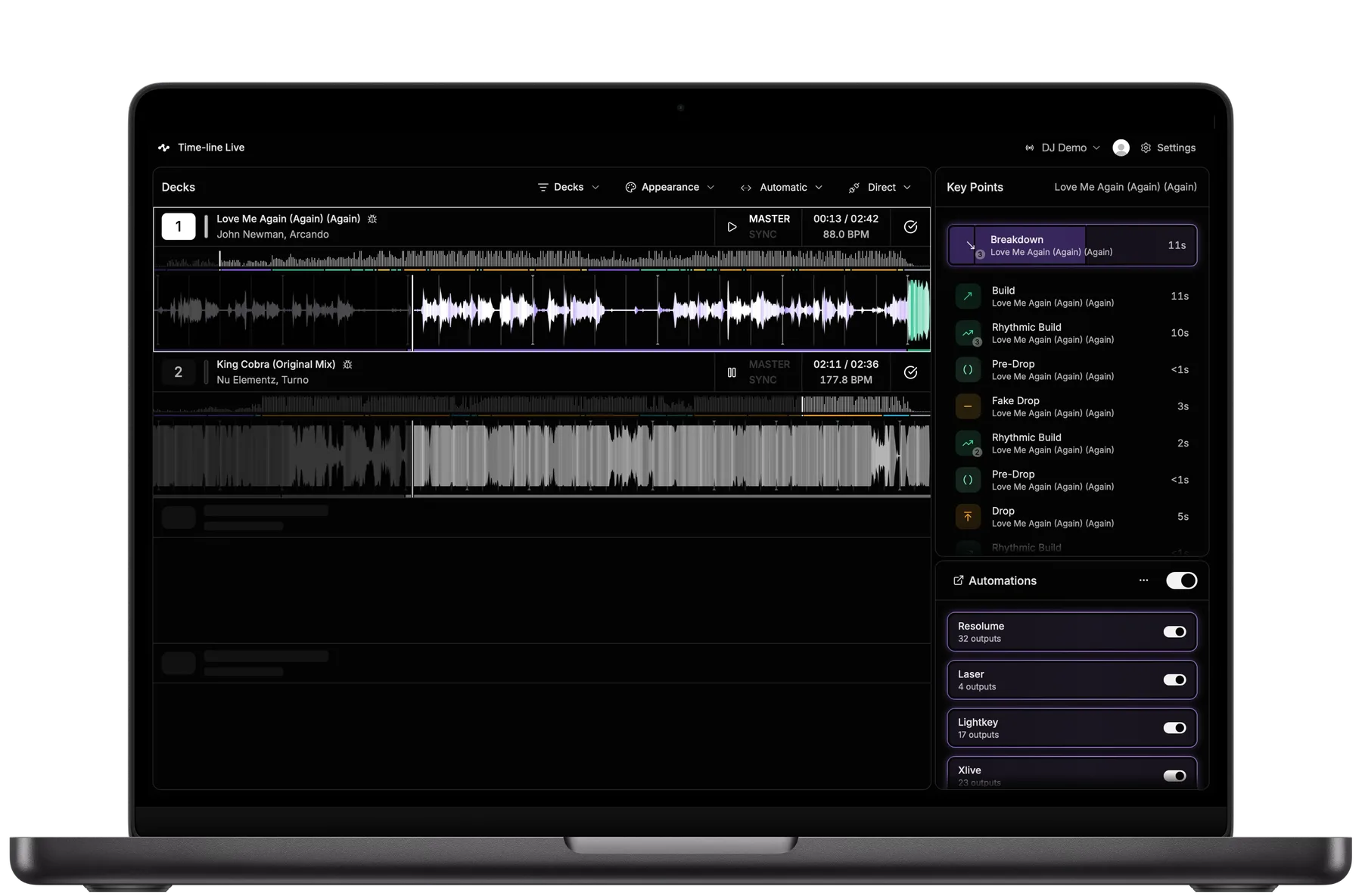
The Home screen is where you'll monitor a live DJ performance and, with the Pro subscription, trigger real-time automations. As tracks are loaded and played, Time-line Live automatically updates the interface with live information from the connected DJ equipment.
Decks
The Decks panel displays every compatible DJ player detected on the network.
- Track information
- Deck status
- Elapsed time
- BPM
- Mini map
- Live waveform
- Active deck
- Analysis progress
As the DJ loads tracks, changes decks, loops sections or jumps through a track, the Decks panel updates automatically.
Showing or hiding decks
By default, Time-line Live displays all supported DJ players it detects on the network.
If your setup only uses a subset of the available players, click Decks in the toolbar to choose which deck numbers should be shown. Hiding unused decks can make the interface easier to follow during a performance.
Changing waveform appearance
Click Appearance to customize how waveforms are displayed.
Available options include:
- Color waveforms — Display waveforms using Time-line Live’s color-coded Key Points (see also Understanding Key Points)
- Show key point labels — Show or hide the names of detected Key Points on the waveform.
- Highlight active deck — Visually highlight the deck currently playing to the audience.
- Waveform zoom — Zoom the waveform in or out horizontally to adjust the level of detail displayed.
Key Points Requires Pro
The Key Points panel displays the Key Points detected by Time-line's machine learning model. Example: Drop, Breakdown, Pre-Drop, Fake Drop, Build, Rhythmic Build, etc.
For each Key Point, you'll see:
- The type of musical event
- A countdown until the next Key Point starts
To learn more, read Understanding Key Points.
Automations Requires Pro
The Automations panel lets you manage the automation flows. From this panel you can:
- Enable or disable individual automation flows
- Open Node-RED to create and edit your custom workflows
- Monitor which automations are active during playback
Automations can control lighting, video, special effects and any other system that supports OSC or MIDI.
Learn more about Setting up Automations.
Next steps
Now that you're familiar with the Home screen, learn more about:
How is this guide?
Last updated on