Host and Followers
Run Time-line Live on multiple computers during the same show using Host and Follower mode.
Time-line Live can share the connection to your DJ setup with other computers running Time-line Live. This allows multiple operators (for example lighting, video, and SFX) to follow the same DJ performance without every computer connecting directly to the decks. One computer acts as the Host. Other computers Follow the Host.
Subscription access
Host and Follower mode is available on all plans, including Free. Feature availability for Followers depends on the Host’s subscription.
How it works
The Host connects directly to the decks and makes the connection available to other Time-line Live computers. Followers connect to the Host instead of connecting directly to the decks.
When you open Time-line Live:
- If no Host is available, your computer automatically starts Hosting.
- If a Host is already available, Time-line Live automatically connects to it and starts Following.
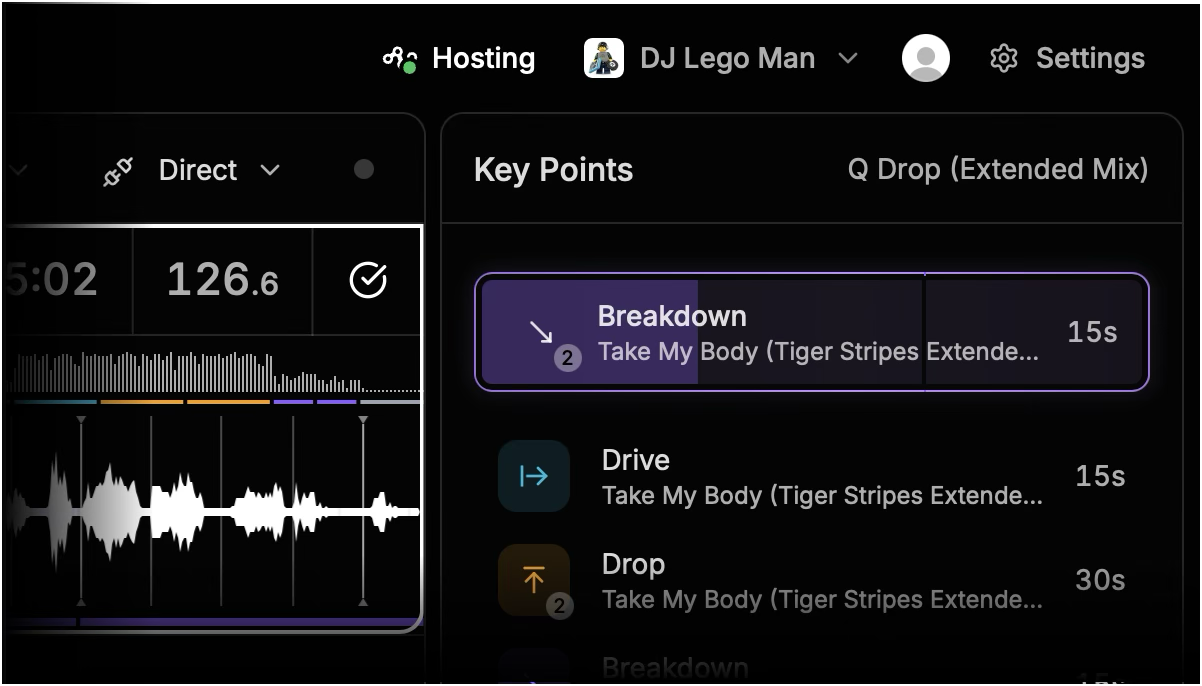
You can see whether your computer is Hosting or Following in the top right of the menu bar:
- Hosting means your computer is the Host.
- Following means your computer is following another Host.
One direct connection to the decks
Only one Time-line Live computer should connect directly to the decks at a time.
Recommended network setup
For live production environments, we recommend separating the deck network from the network used by your Time-line Live computers.
- Deck network — Connect the decks and the Time-line Live Host to a dedicated Ethernet switch. Only the Host needs direct access to this network.
- Time-line network — Connect the Host and Follower computers to a separate network. Followers use this network to communicate with the Host.
The Host connects to both networks. This setup keeps other show computers isolated from the decks while still allowing them to use Time-line Live.
Tip
We recommend wired Ethernet connections for live shows whenever possible.
Following another computer
If Time-line Live detects a Host when it starts, it automatically starts Following. While Following:
- Your computer receives the deck information through the Host.
- The top bar shows which computer you are Following.
Click the Following status in the top bar to view connection details or to stop following.
Changing the Host
Only one Time-line Live computer should Host at a time. To move Hosting to another computer:
Quit Time-line Live on the current Host.
On the computer that should take over, start Hosting. This computer needs access to the deck network.
Other Time-line Live computers can then Follow the new Host.
Do not start Hosting on another computer while the current Host is still connected to the decks.
If the Host disconnects
If the Host becomes unavailable, Followers briefly try to reconnect. If the Host does not return, Time-line Live ends the current connection and looks for another Host.
If no other Host is available, you can choose Start hosting on a computer that has access to the deck network. Time-line Live does not automatically make a Follower the new Host, allowing you to choose which computer should take over.
Multiple computers connected to the decks
Only one computer running Time-line Live can connect directly to the decks at a time. If another Time-line Live computer is already connected, Time-line Live will prevent the second computer from connecting and show a warning.
Quit Time-line Live on the computer that should no longer be connected to the decks, then try again.
How is this guide?
Last updated on