Troubleshooting
Find solutions to common setup, connection, and system configuration issues.
If you’re experiencing issues connecting Time-line Live to the DJ equipment, please follow the steps below.
Start with troubleshooting in Time-line Live
If you’re experiencing connection or performance issues, start by running the built-in Troubleshooting check in Time-line Live.
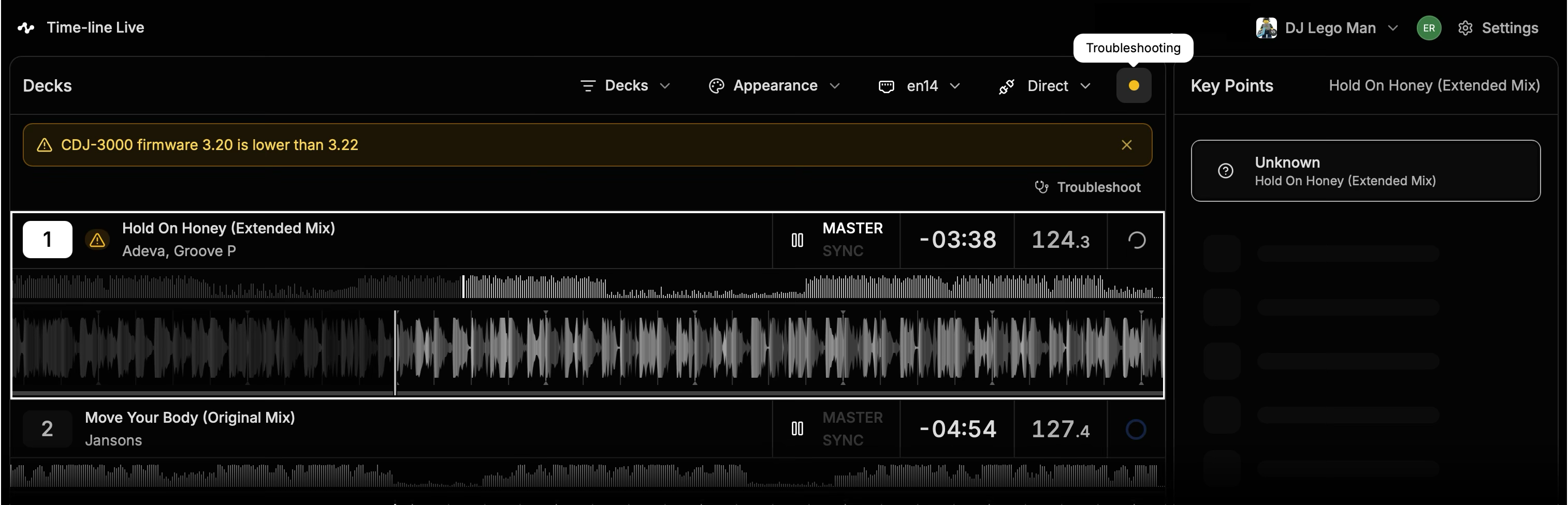
Click the Troubleshooting indicator top right of the Decks panel in the home screen. Time-line Live will automatically check for common issues and guide you through any recommended fixes.
If the issue persists, use the troubleshooting steps below for additional guidance.
No players detected
- Check your network
-
Pro DJ Link Mode is enabled in Settings of the DJ equipment.
-
If you’re Hosting, make sure your Mac and the DJ equipment are on the same local network. If you’re Following, make sure your Mac can reach the Host on the Time-line network.
-
Network cables are securely connected.
-
Make sure your DJ equipment is running the latest firmware.
-
Try restarting your DJ gear to renew its IP address.
This can help after moving your DJ equipment between networks, especially from a self-assigned link-local address (
169.254.x.x) to a network with a DHCP server. Check that the DJ equipment and the Host’s DJ-network interface have IP addresses in the same subnet.
-
- Check the network interface
- If your Mac has multiple active network adapters, try manually selecting the correct interface from Settings → Network instead of using Automatic.
- Check for conflicting software
- Time-line Live uses local network ports to communicate with the DJ gear. Other applications may block or use these ports.
- Before launching Time-line Live on your Mac, close applications such as:
- Rekordbox
- VPN software
- Remote desktop software (e.g. TeamViewer)
- Virtual DJ tools such as Serato or Traktor
- Firewall or antivirus software that may interfere with local network communication.
- If you’re using ShowKontrol, make sure it’s running on a different computer.
- Check for another Time-line Live Host
Only one Time-line Live computer can connect directly to the DJ equipment at a time. If another computer is already Hosting, connect to it as a Follower instead of establishing another direct connection.
If Time-line Live reports that multiple computers are Hosting, stop Hosting on all but one computer.
See Host and Followers.
No waveforms appear
If a track is loaded from a USB drive that was not exported using Rekordbox, the CDJ must first analyze the track before waveform data becomes available.
As a result, the waveform may not appear in Time-line Live until the next time the track is loaded.
For the best experience, we recommend using USB drives exported from Rekordbox.
Intermittent playhead updates
If the playhead occasionally pauses or updates irregularly:
- Check for software interfering with network traffic
- Some applications may interfere with the timely delivery of the play state from the DJ equipment.
- Temporarily close applications such as
- VPN software
- Firewall or antivirus software
- Remote desktop software (for example TeamViewer)
- Network monitoring or packet capture tools
- Check your network
- If you’re Hosting, check the connection between your Mac and the DJ equipment. If you’re Following, check the connection to the Host and the Host’s connection to the DJ equipment.
- Avoid unstable Wi-Fi connections where possible. A wired Ethernet connection is recommended.
- If your setup includes managed switches, VLANs or other professional networking equipment, verify that network traffic is being forwarded correctly between the DJ equipment and the computer running Time-line Live.
- Isolate the issue
- If the problem persists, temporarily test using a simple network consisting of the DJ equipment, your Mac and a single Gigabit Ethernet switch. If the issue disappears, it is likely related to the network configuration rather than Time-line Live itself.
Time-line Live is slow or unresponsive
If Time-line Live becomes slow or unresponsive, check whether other memory-intensive applications are running on the same Mac. On Macs with limited memory, applications such as Resolume, TouchDesigner, or Unreal Engine can compete for system resources and affect Time-line Live's real-time analysis.
If your Mac has limited memory, we recommend running Time-line Live on a dedicated machine or closing other memory-intensive applications.
Still having trouble?
If you're still experiencing issues with Time-line Live, contact Time-line Support at hello@time-line.io.
When contacting support, please include:
- Your Time-line Live version
- Your Mac specifications (model, memory, and macOS version)
- Your DJ equipment and firmware versions, if relevant
- A brief description of your setup and the issue you're experiencing
This information helps us troubleshoot your issue more quickly.
How is this guide?
Last updated on