Try without DJ gear
Use Local Player mode to try Time-line Live from your Mac without connecting DJ equipment.
You don’t need to connect DJ equipment to try Time-line Live. The Local Player lets you load tracks directly from your Mac and explore Key Point analysis and Automations.
Switch to Local Player mode
Open Time-line Live.
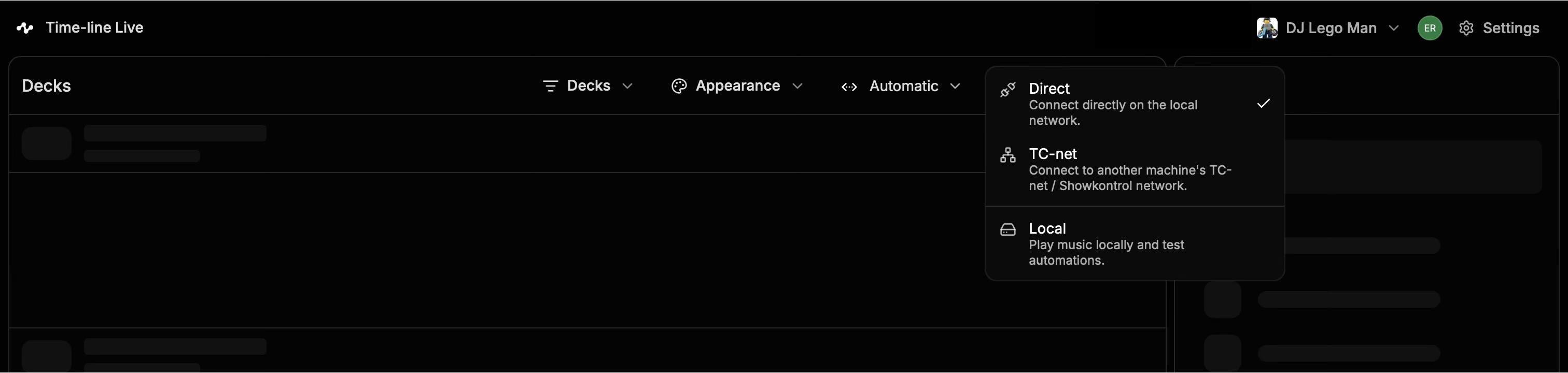
At the top-right of the Decks panel, open the connection menu. It will usually show Direct.
Select Local.
Load a track
Once you’re in Local Player mode:
Load a track from your Mac.
Time-line Live will analyze the track and display its Key Points including builds, breakdowns, drops and other important musical events.
Play the track to see how Time-line Live follows the music in real time.
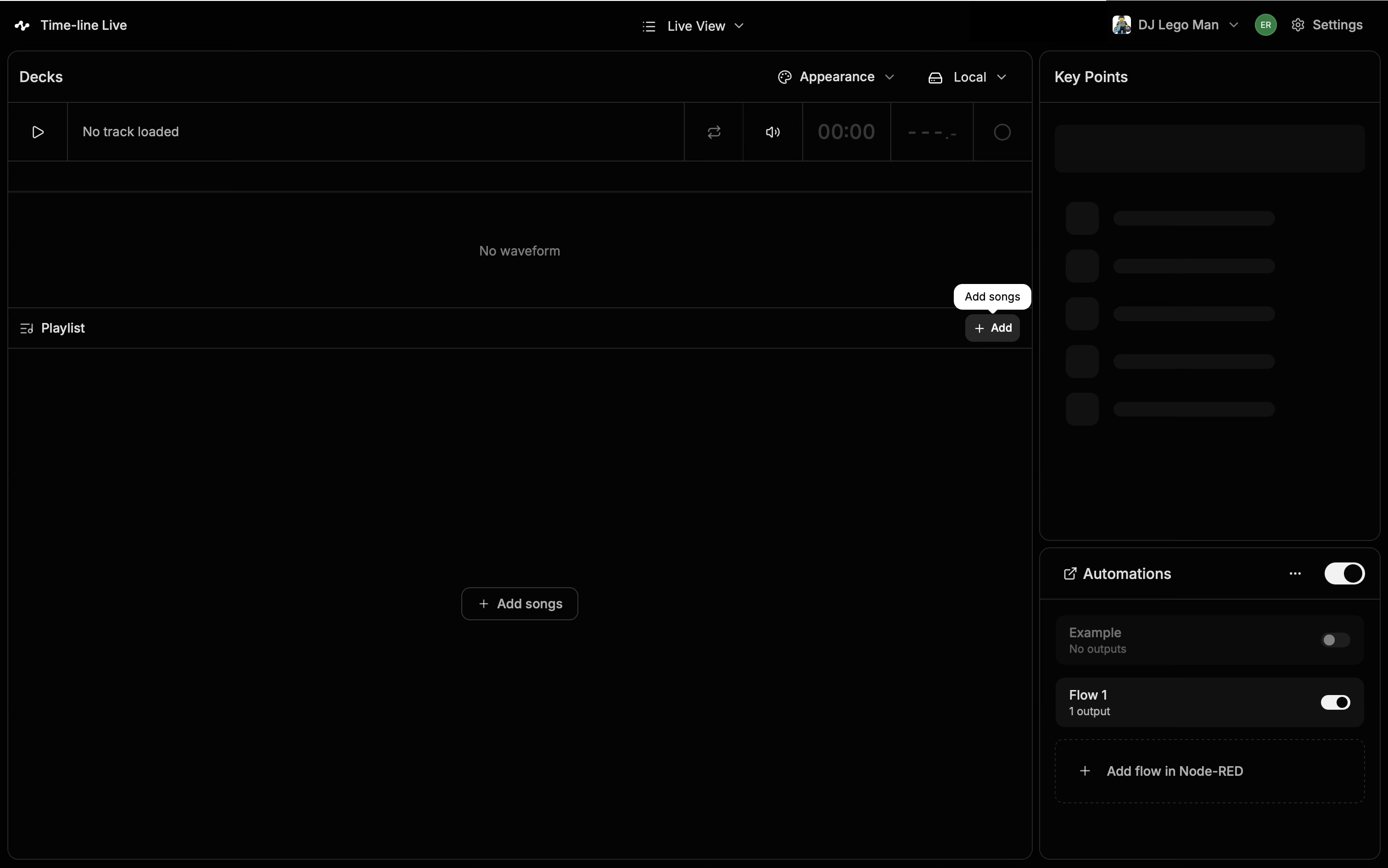
You can also use Local mode to test Automations without having DJ gear connected.
Note
Key Point analysis and Automations require an active Pro trial or subscription.
How is this guide?
Last updated on