Setting up automationsRequires Pro
Use Node-RED in Time-line Live to connect musical events to lighting, visuals, and show-control systems.
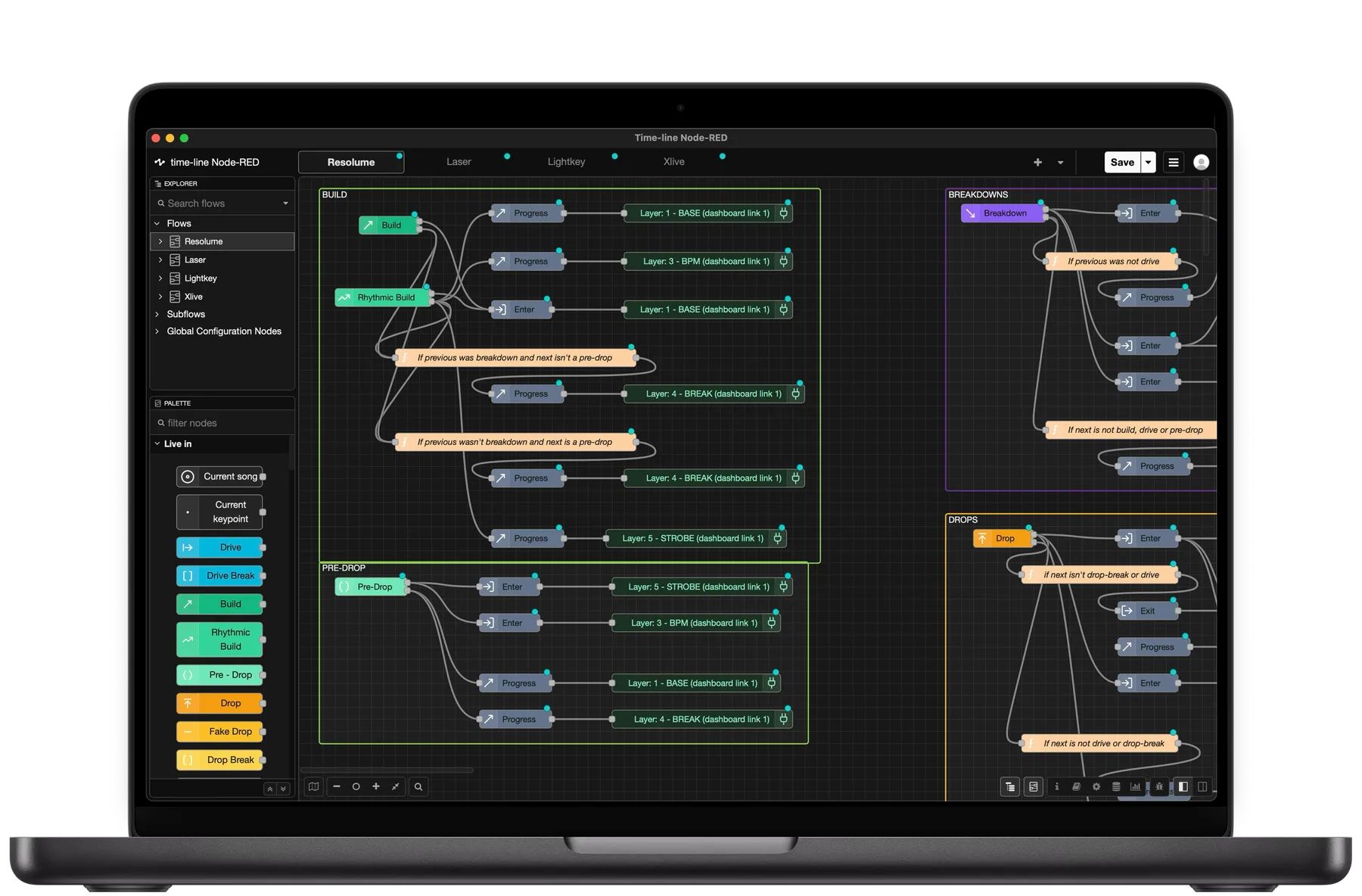
Automations allow Time-line Live to trigger lighting, visuals, media servers, lasers, special effects, and other show systems automatically as a DJ performs.
Unlike traditional show automation, which relies on pre-programmed timecode or cue lists, Time-line Live continuously analyzes the live DJ performance and detects musical Key Points such as builds, drops, and breakdowns in real time.
The most common workflow is simple:
- Create one or more scenes for each Key Point type in your show system.
- Connect those scenes to the corresponding Key Points in Node-RED.
- Let Time-line Live automatically trigger the correct scene as the DJ performs.
Because the automation follows the music instead of a fixed timeline, your show continues to work even when the DJ changes the order of tracks or performs an unplanned set.
Supported Show Systems
Time-line Live communicates using OSC and MIDI, making it compatible with virtually any software or hardware that accepts those protocols.
Examples include:
- Lighting consoles (e.g. GrandMA or ChamSys)
- Resolume
- Unreal Engine
- TouchDesigner
- Media servers
- Laser control software
- Custom OSC or MIDI applications
Building Smarter Automations
Time-line Live doesn't just tell your show system that a Drop happened.
It also includes additional musical information, including:
- Previous and next Key Point
- BPM
- Duration of the current Key Point
- Elapsed and remaining time within the Key Point
- Ableton Link synchronization
This allows your automations to react to how the music evolves, rather than simply triggering a new scene.
For example:
- Gradually increase strobe intensity as a Rhythmic Build approaches its end.
- Slowly brighten fixtures throughout a Build, reaching full intensity at the Drop.
- Reuse the same color palette for a short Build between two Drop sections.
- Pulse lights or visuals to the BPM during a Drop.
- Trigger different effects depending on whether a Build leads into a Drop or a Fake Drop.
Getting Started
Time-line Live uses Node-RED to build automation workflows.
Node-RED is a visual programming tool that connects Key Points detected by Time-line Live to OSC and MIDI messages sent to your show systems. No programming experience is required.
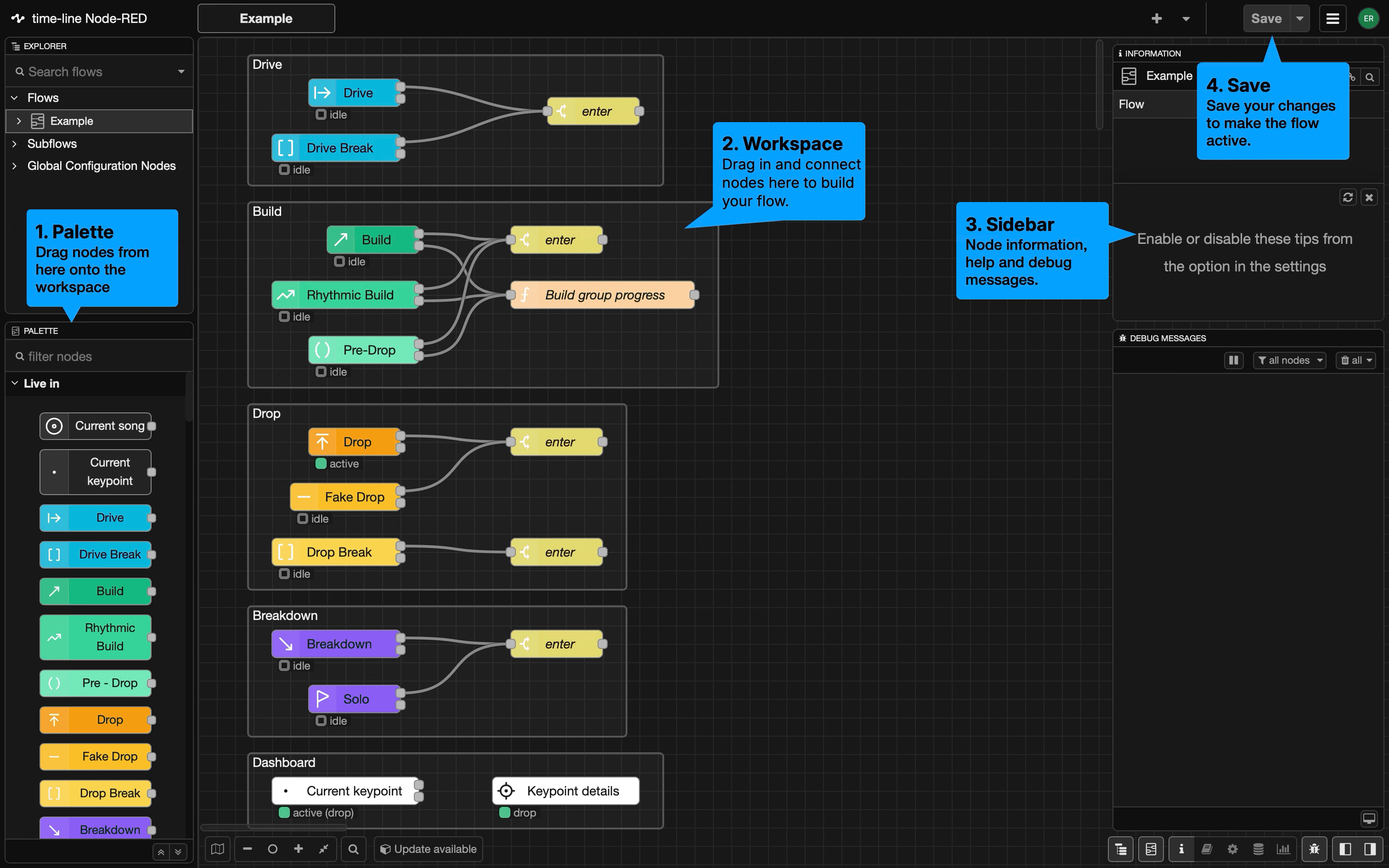
To create your first automation:
In Time-line Live home screen, open the Automations view.
Enable the Automations toggle.
Click Add flow in Node-RED.
Time-line Live will automatically open Node-RED in your web browser, where you can begin creating your first workflow.
Next Steps
- Build and test your first automation: Creating your first flow
- Explore the available Time-line nodes: Using Time-line Node-RED Nodes
- Learn how to use Key Points, Groups, Families, Progress, and more:Using Key Points in Node-RED
How is this guide?
Last updated on